
“My list has 200 things on it”
My Day holds only today's tasks, picked from every list. Suggestions bring up what's overdue, due or planned, so the morning pick takes seconds.
Free · macOS · Windows · Linux
A calm, fast todo app. Keep a long backlog, pick what you'll actually do today, and keep your current task in the menu bar. Everything lives in one file you own, synced through Dropbox or iCloud Drive.
Version 1.4.0 · No account · No subscription · Nothing collected
Plan, don't just pile up
Lists grow, and that's fine. Each morning you pick what you'll actually do, put it in order and tick it off. Yasa remembers the rest.
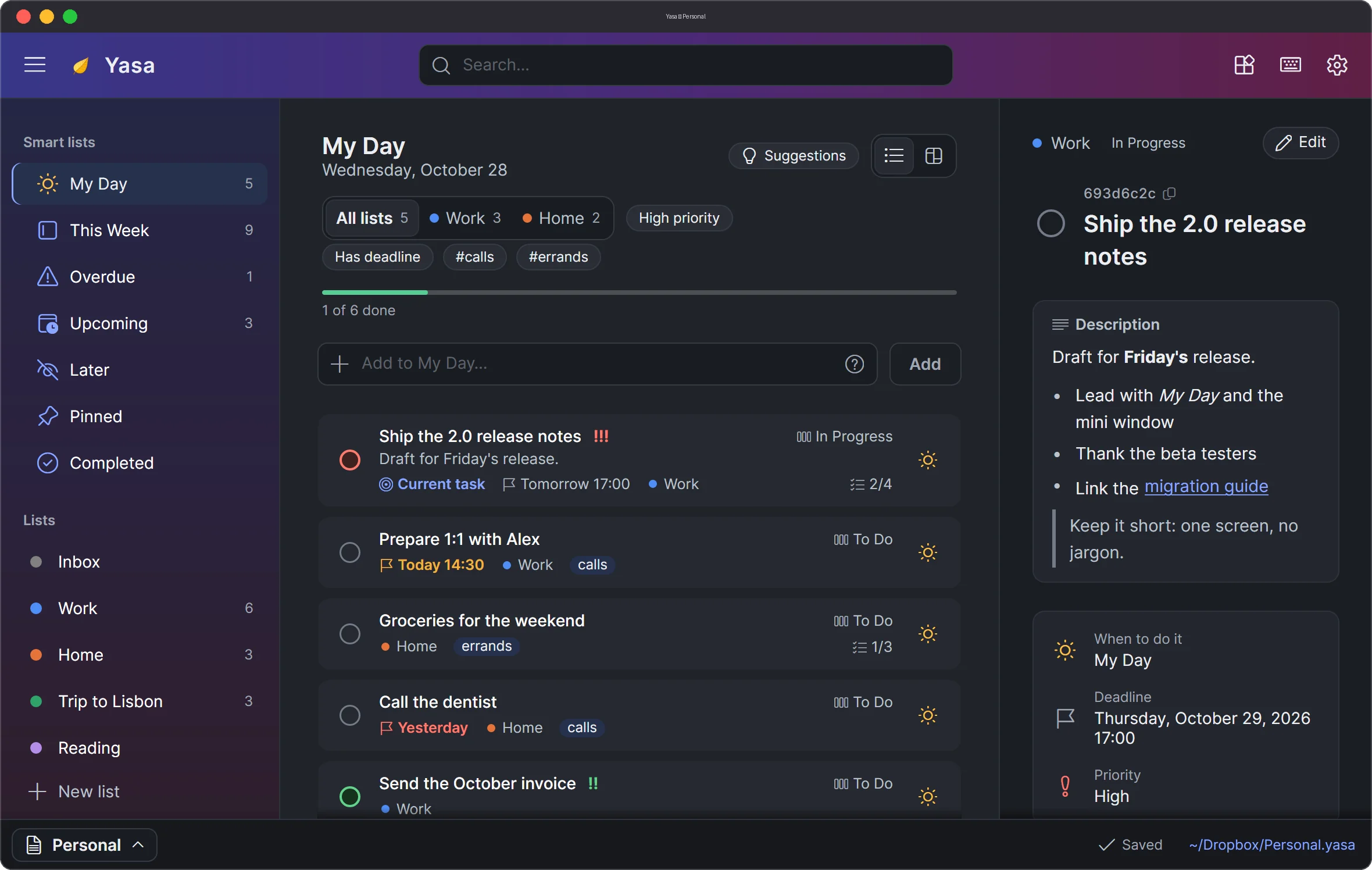
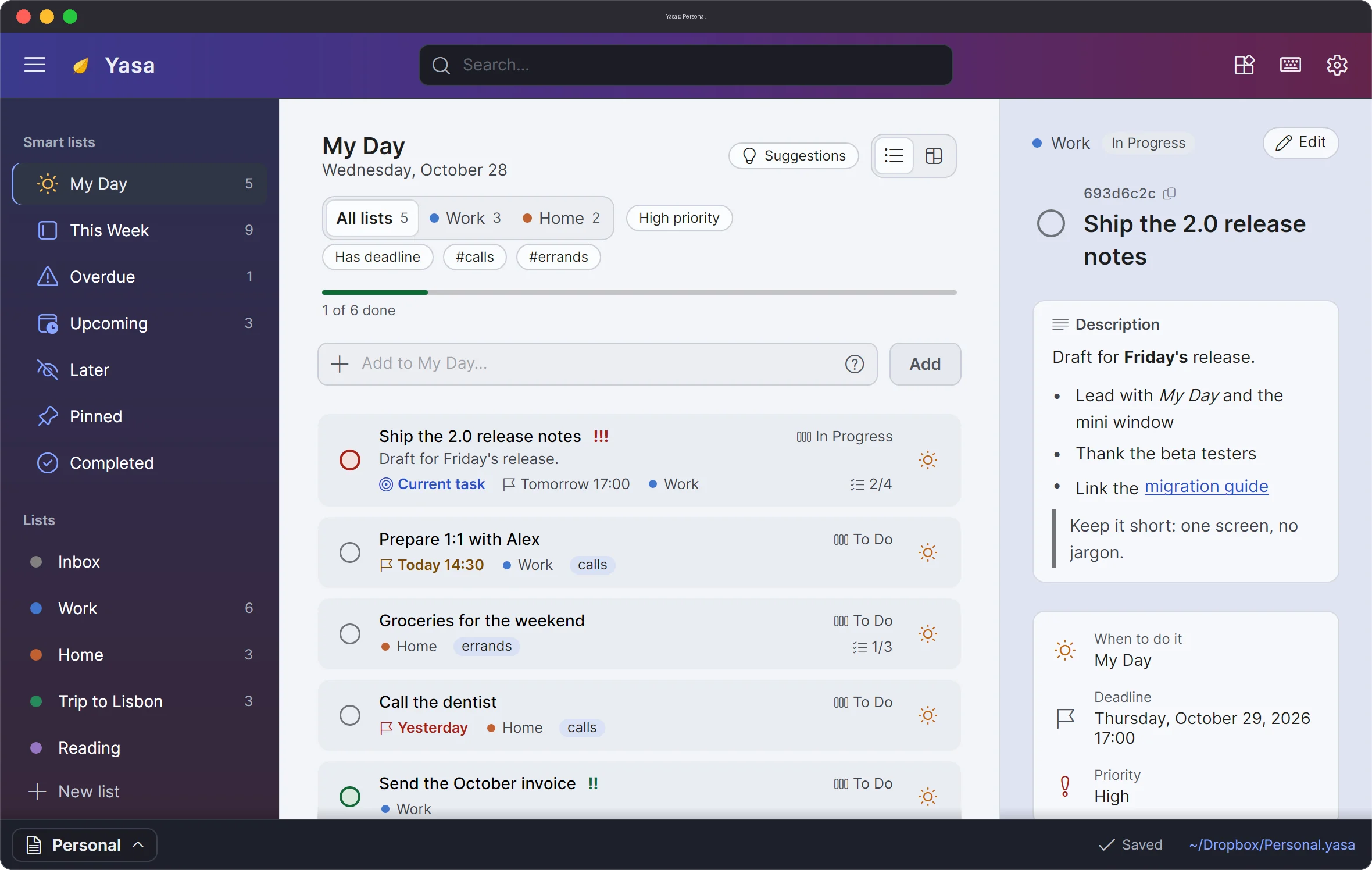
My Day holds only today's tasks, picked from every list. Suggestions bring up what's overdue, due or planned, so the morning pick takes seconds.
Plans and deadlines are separate, and Yasa keeps both: when you mean to work on it, and when it must be done.
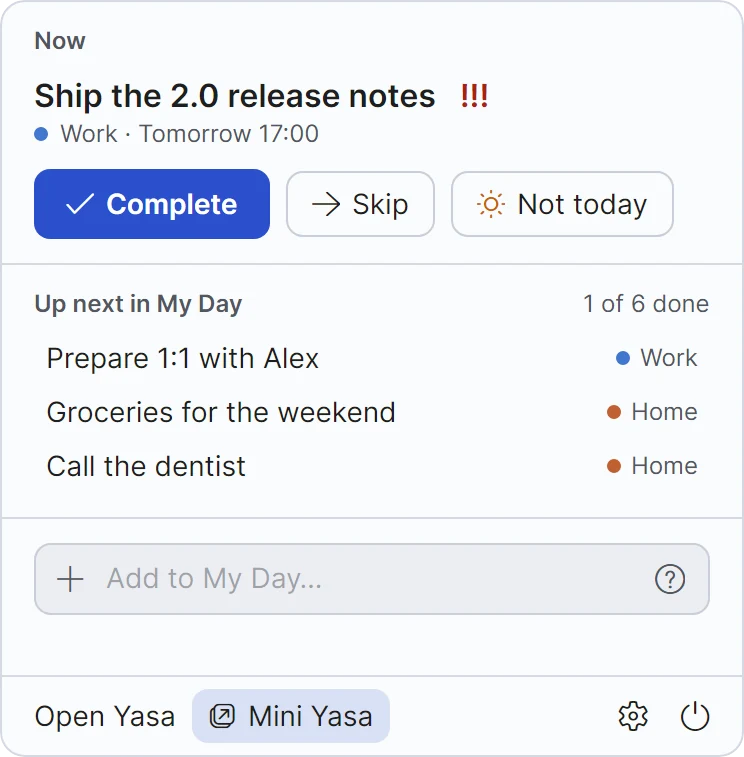
Your current task sits in the menu bar (or the tray), one click from done. Finish it and the next one moves up.
Hide until keeps it out of sight until its day, then brings it back at the top. Nothing due is ever hidden.
Repeat on the 1st, every other Friday, or 3 days after the last time. Tick it off and the next one waits for its day.
Nothing falls through the cracks: what you didn't finish is offered again the next morning. Review it, move it all to today, or let it go.
One app, every way you plan
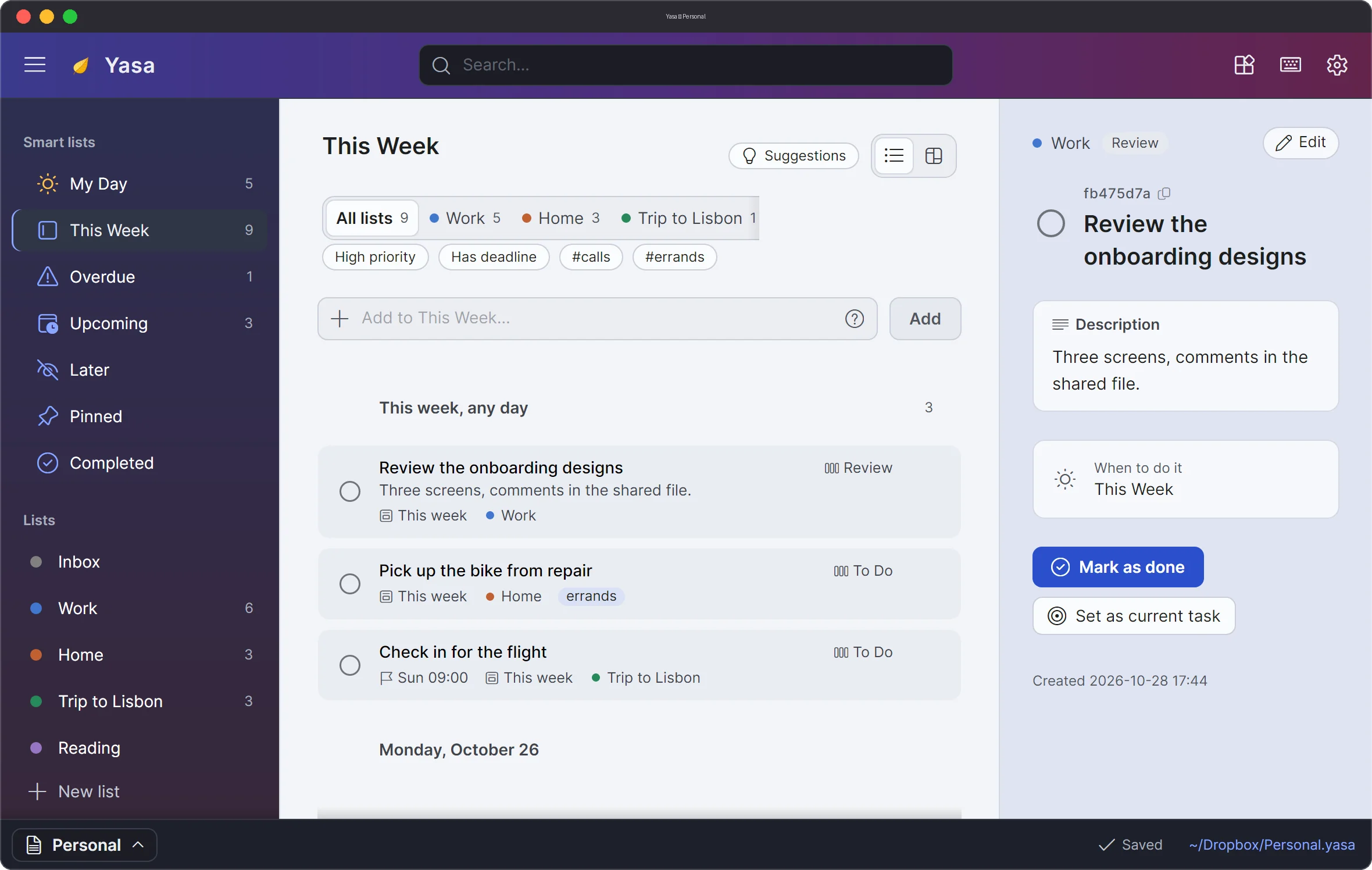
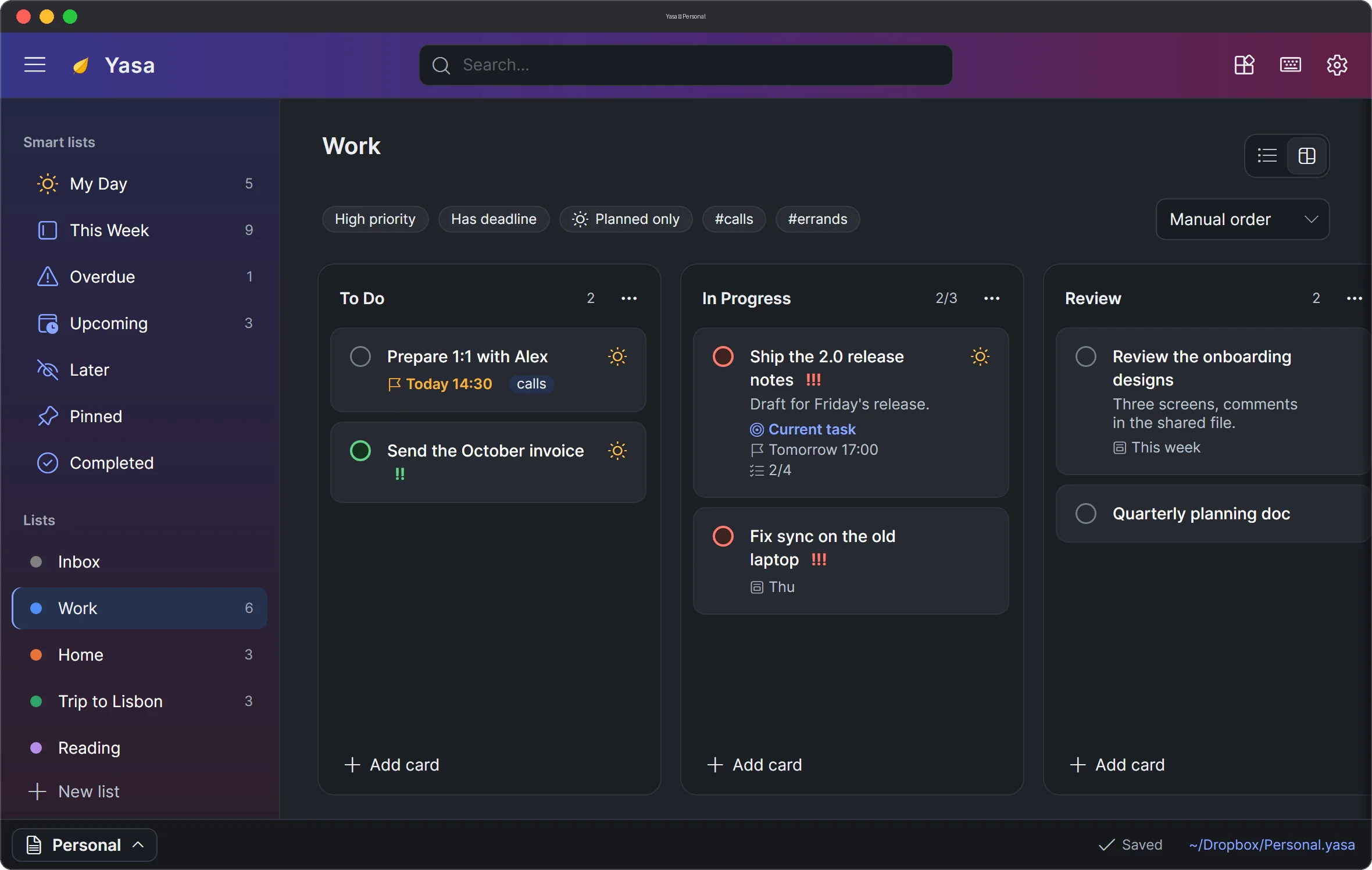
The same tasks, seen the way the moment needs: a short list for today, a week laid out by day, or columns of cards to drag along.
Always in sight
On a Mac the task you're on sits in the menu bar; on Windows and Linux it's one click away on the tray icon. Complete it, skip it, push it to tomorrow or add something, without switching apps.
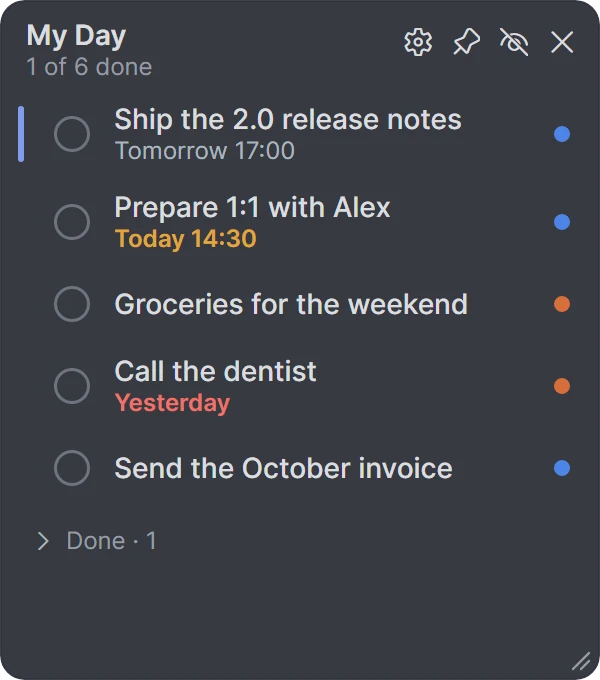
Mini Yasa
Keep today's tasks beside your editor, a call or a full-screen video, and tick them off right there. It shows My Day, This Week, one list, one column or your pinned tasks.
Capture in a second
CtrlAltSpace opens a box over any app. Type the task: the date, priority, tags, list and My Day are picked up as you go, and shown before you press Enter.
Buy milk tomorrow 18:00 !high #errand @Home *
Call the dentist fri 9:30 #calls @Home
Draft the Q4 roadmap +3d !m @Work *
tomorrow fri 18:00 +3d!high !m !1#errand@Home*start:friThoughtful everywhere
A new Yasa starts simple: lists, a check box, My Day. Deadlines, priorities, tags, checklists, boards and repeats are one switch away in Settings ▸ Features.
Every weekday, every 2 weeks on Monday and Thursday, the last Friday of the month, 12 times or until June. The editor says the rule back to you, and when the next one comes.
Everything works without a mouse, even moving cards. CtrlK finds any command; ? lists every shortcut.
Bold, lists, check boxes, links and tables. Write Markdown, use CtrlB, or paste from a web page or Word.
Archive the Done column to start a sprint or a week over. Nothing is deleted: name the period and open it any time.
Encrypt a document (AES-256), so it's unreadable even in a shared folder, while sync, merging and backups keep working.
Saved in the background, safely, every time.
Turn on only what you use. Turning a feature off just hides it: your tasks keep their dates and tags.
Your tasks. Your file.
Each .yasa file is a todo document of your own: Work.yasa, Personal.yasa, wherever you
like.yasa. Put it in Dropbox, OneDrive, iCloud Drive or Syncthing and use it from every computer.
Ship the notes → Ship the 2.0 release notes
Ship the notes
Completed at the officeShip the 2.0 release notes
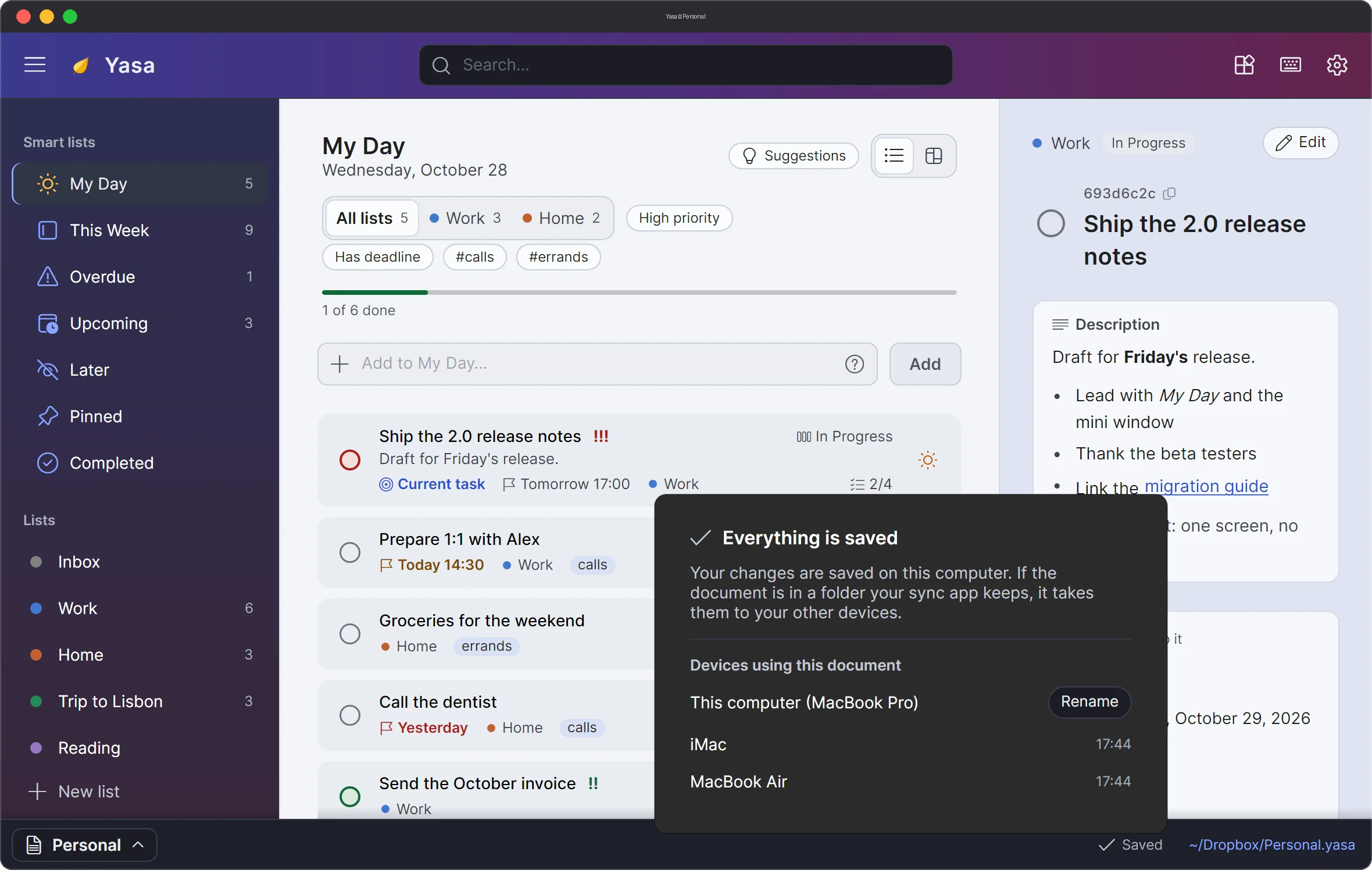
Done and renamed: both changes keptYasa merges changes field by field, even through a sync service's “conflicted copy” or a sync that arrives an hour late. When two computers change the same thing, the later change wins and the other is kept with the task.
Plain JSON you can open in any text editor. Double-click a .yasa file and it opens in Yasa.
A copy before the first save of the day and hourly while you edit. Restore any of them from the File menu.
Yasa asks Dropbox, OneDrive and iCloud Drive to keep your documents on this computer, and keeps your edits while one downloads.
Plan with your AI assistant
Yasa comes with an MCP server, so Claude, Copilot, Cursor and Codex can read and update your lists, right on your computer. Nothing listens on the network, and an open Yasa shows the agent's changes within a second.
Hand a task's short ID to your coding agent: it reads the description and checklist, ticks off the steps and marks it done. Deletes always ask you first.
you help me plan my week
⏺ yasa · get_this_week()
9 planned · 1 overdue · 3 due by Friday
⏺ yasa · plan_items(["Call the dentist", …], "today")
Moved Call the dentist and 2 more into My Day, and spread the rest over the week.
$ claude mcp add --scope user yasa -- /Applications/Yasa.app/Contents/MacOS/Yasa --mcp
Settings ▸ AI agents shows the exact command for your computer and the setup for each client.
Looks good in every light
Mica on Windows 11, vibrancy on macOS, 30 list colors tuned for light and dark, and short, snappy animations that step aside when you turn on reduced motion.
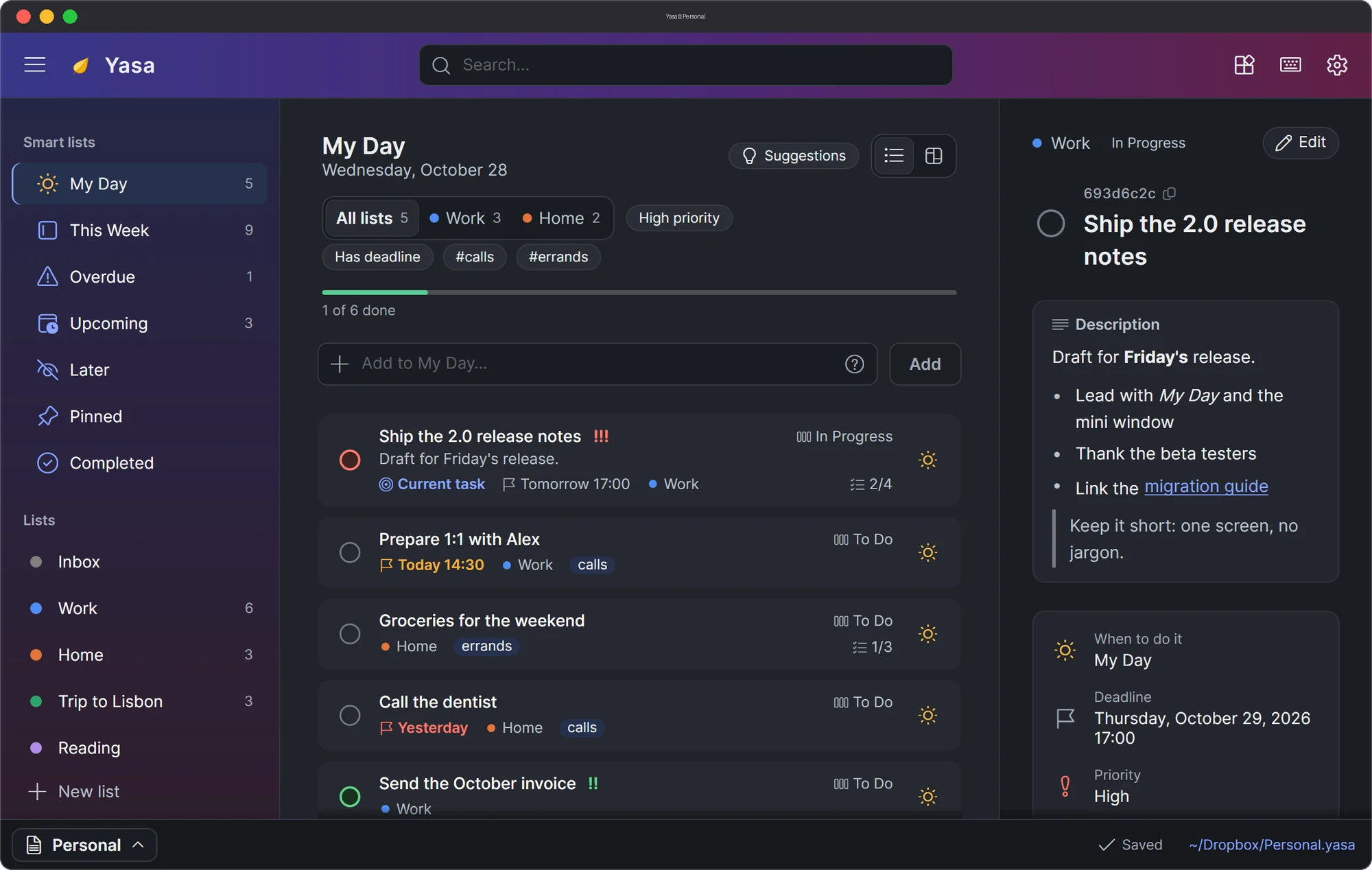
The store editions include the Yasa gradient; the other color schemes come with Yasa Pro there. The direct downloads have them all.
No account and nothing collected. Your tasks stay in the files you choose; Yasa sends nothing itself.
English, Deutsch, Español, Русский, Українська, Татарча, switched live. Dates follow your region.
A name for every control on a screen reader, zoom from 80 % to 200 %, larger click targets, and color never the only signal.
Download
Native on every system, nothing else to install.
macOS 12 or later · Apple Silicon and Intel
It isn't notarized by Apple, so macOS asks before its first start. Move Yasa to Applications and open it; when macOS stops it, click Open Anyway in System Settings ▸ Privacy & Security. Or run this once in Terminal:
xattr -dr com.apple.quarantine /Applications/Yasa.appIt doesn't update itself: get each new version here. The App Store edition updates on its own.
The App Store edition is free, with an optional one-time Yasa Pro. The direct download has everything unlocked.
Version 1.4.0
Windows 10 (1809) or later · x64 and ARM64
Nothing to install: unpack the Yasa folder anywhere and start Yasa.exe. It isn't signed, so Windows SmartScreen may stop it the first time: click More info, then Run anyway.
It doesn't update itself: get each new version here. The Microsoft Store edition updates on its own.
Native AOT: quick to start, with Mica on Windows 11 and your current task on the tray.
Version 1.4.0
x64 or ARM64 · X11 or XWayland
Unpack it and run install.sh: a menu entry, the .yasa file type and the yasa command. On GNOME the tray needs the AppIndicator extension.
Version 1.4.0
Questions
Yes. The downloads here have everything. The Mac App Store and Microsoft Store editions are free too, with an optional one-time purchase, Yasa Pro, for password-protected documents, list and column icons and color schemes. There is no subscription.
No. Your tasks live in a .yasa file you choose, and nothing is collected. The privacy policy says it plainly.
Put your .yasa file in Dropbox, OneDrive, iCloud Drive or Syncthing, and open it in Yasa on
each computer. Edits save on their own, and changes from your other computers show up with a short note, such as
3 changes from Laptop.
Nothing is lost. Different changes are all kept; the same field changed on both keeps the later change, and the other stays with the task under Earlier values, ready to bring back.
No. Yasa is a todo app first; the MCP server only runs when you connect an agent to it, and you can let it read only.
Yes. A .yasa file is readable JSON: open it in any text editor. A password-protected one is encrypted, by design.